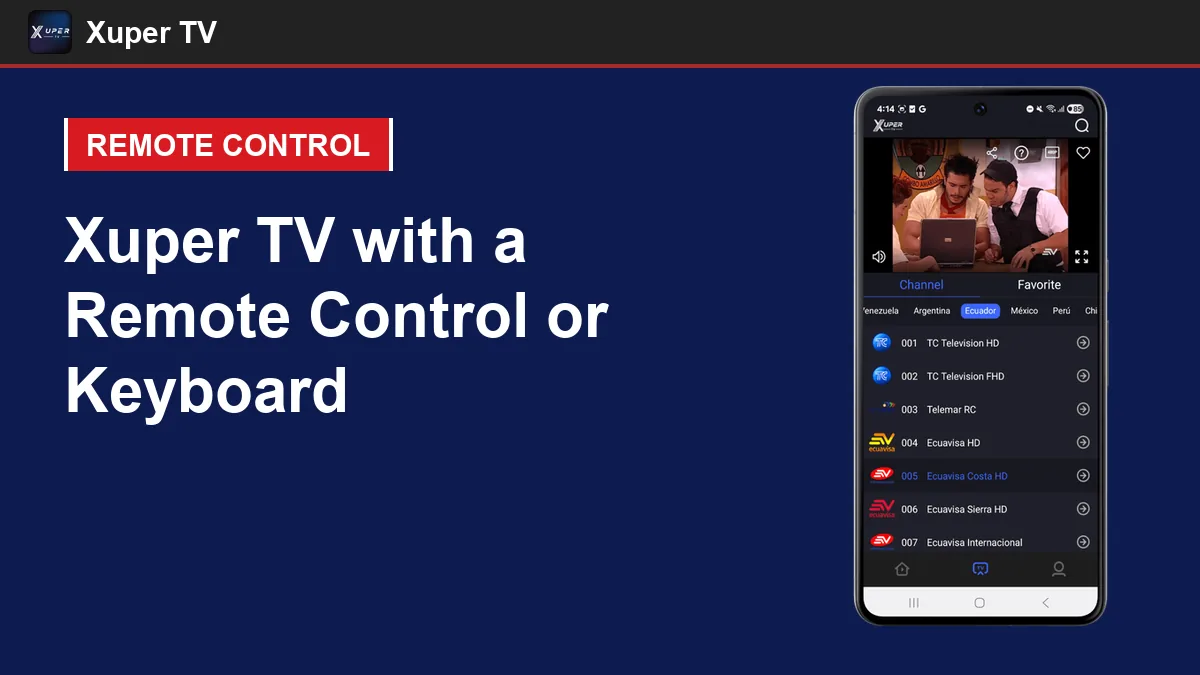
On your phone, everything is done with your finger, but on a TV, TV Box, or computer emulator Xuper TV is controlled with buttons. Knowing what each button does saves you a lot of time scrolling through the channel list.

Xuper TV APK
Table of contents
Remote control buttons
| Button | What does he do on Xuper TV |
| Left and right arrows | They change country or category in the top bar. |
| Up and down arrows | They scan the channel list |
| Center button or OK | Open the selected channel or tab |
| Back | Exit the player and return to the playlist |
| Start | Leave the app running in the background |
| Menu, if your controller has one | Displays player options |
In the TV APK, the selected item is highlighted with a box. If you don't see one, tap the arrow once to make it appear before navigating.
Keyboard on the computer
If you use the APK within an emulator, as explained in Xuper TV for PC, the keyboard mimics the remote control:
- Arrows: They move the selection just like on TV
- Enter: opens the channel
- Esc: works like Back in most emulators
- F11 or the emulator button: puts the window in full screen
- Mouse wheel: scrolls the channel list faster
Some emulators assign keys to touch gestures. If an arrow key isn't responding, check the emulator's key map and disable game controls for Xuper TV.
Air mouse and wireless keyboards
Many TV Box support air mouse, a control that moves a pointer when you point it at the screen. It's useful for typing in the search bar, but the arrow keys are still faster for navigating channels. Small keyboards with touchpads, Bluetooth, or USB receivers work similarly and are convenient if you frequently search by name.
The telephone as a remote control
If your TV has Google TV, the Google TV app on your phone includes a virtual remote control with a keyboard. This lets you type in the Xuper TV search bar without struggling with the on screen grid of letters.
- Install the app. On your phone, open the Google TV or Google Home app.
- Connect. With your phone and TV on the same WiFi network, tap the remote control icon.
- Match. Write the code that appears on the TV.
- Type. When the cursor is in the Xuper TV search bar, use your phone's keyboard.
Tricks to move faster
- Save your channels to favorites and always start from that tab.
- Remember the three digit number of your channels; the list maintains that order.
- Use the search engine for movies and series instead of browsing categories.
- Press Back once to return to the list without losing your position.
Frequently Asked Questions
Can I change channels using the channel buttons on the remote?
It depends on the device. On most, you change it using the arrow keys in the list.
Will a console controller work?
Many Bluetooth remotes work on Android TV: the D pad acts as arrows and the A button as OK.
What do I do if the controller stops responding in the app?
Close the app from Settings, Apps, Force stop, and reopen it.